Divi Performance Settings That Actually Speed Up Your Site
Divi performance settings are the built-in toggles under Divi Theme Options that strip the theme's CSS, JavaScript, icons, and fonts down to only what each page actually uses. Enable Dynamic CSS, the Dynamic Module Framework, and Dynamic JavaScript, then test Critical CSS and jQuery deferral one at a time before pairing them with a cache plugin.
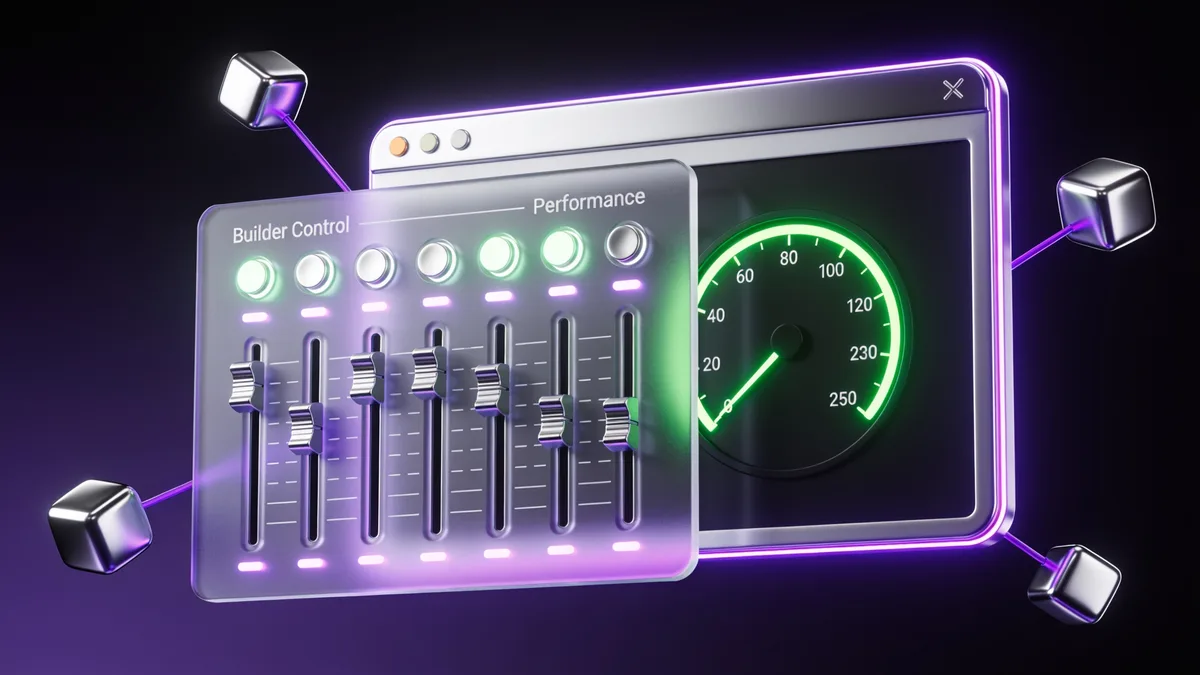
Divi performance settings are the built-in toggles under Divi Theme Options that strip the theme's CSS, JavaScript, icons, and fonts down to only what each page actually uses. Enable Dynamic CSS, the Dynamic Module Framework, and Dynamic JavaScript, then test Critical CSS and jQuery deferral one at a time before pairing them with a cache plugin. If I were checking this on a real site, I'd start with the page that earns traffic or money, confirm whether the issue is backend, frontend, content, or layout related, then apply one fix at a time.
What are Divi's performance settings?
Divi's performance settings are the cluster of built-in toggles that control how much CSS, JavaScript, icon font, and Google Fonts code the Divi theme actually ships to each page. You'll find them at Divi > Theme Options > General > Performance in your WordPress dashboard, and on a current Divi install most of them are on by default.
Here's why they exist. Without them, Divi loads one giant stylesheet of roughly 900kb on every page whether you use those styles or not, plus icon fonts, jQuery, and Google Fonts that a lot of pages never touch. Elegant Themes has confirmed that on a typical page you might only need about 80kb of that CSS, so the rest is dead weight slowing your render. The performance tab is Divi's way of generating only the assets a page uses, on the fly.
I treat these settings as the foundation layer, not the finish line. They fix theme-level bloat that no cache plugin can clean up properly, because the bloat is baked into how Divi enqueues its assets. Once the theme is lean, your cache plugin settings have far less work to do. If you want the wider context first, my Divi speed optimization service page walks through where these settings sit in a full tune-up.
Which Divi performance settings should you enable?
Enable Dynamic CSS, the Dynamic Module Framework (sometimes labeled Dynamic PHP Framework), Dynamic JavaScript Libraries, and Dynamic Icons first, because these four are the safe, high-impact wins that rarely break a layout. Then test Critical CSS, jQuery deferral, and the inline stylesheet one at a time, since those three are the ones that occasionally cause visible problems.
This is where competitor guides flatly disagree, and it confused me too when I started. Elegant Themes tells you to leave everything on by default. Other well-known Divi speed guides tell you to turn Critical CSS, inline stylesheet, jQuery deferral, and Google Fonts loading off and let a cache plugin handle those jobs instead. Both camps are partly right, and the deciding factor is whether you're running a strong cache plugin.
My decision rule is simple. If you don't run a dedicated cache plugin, leave all of Divi's performance toggles on, because Divi is the only thing optimizing the page. If you do run WP Rocket, FlyingPress, or LiteSpeed Cache, keep Divi's asset-trimming toggles on (Dynamic CSS, modules, JavaScript, icons) but hand off Critical CSS, font handling, and JavaScript deferral to the plugin so the two tools don't fight. Running both on the same job is the single most common cause of broken Divi layouts I see.
For the rendering pieces specifically, my own checklist guide covers the order in the full Divi speed checklist, and the CSS side overlaps with removing unused CSS in WordPress.
What do Dynamic CSS and the Dynamic Module Framework do?
Dynamic CSS breaks Divi's monolithic stylesheet into hundreds of small components and serves only the ones a page needs, which is how a 900kb stylesheet drops to roughly 80kb on a simple page. Elegant Themes has measured up to a 94 percent CSS size reduction on test pages from this single toggle, so it's the single most impactful setting in the whole panel.
The Dynamic Module Framework (older builds call it the Dynamic PHP Framework) does the same anti-bloat trick on the PHP side. Instead of loading the logic for every Divi module on every page, it processes only the modules you actually placed on that page. Pair it with Dynamic JavaScript Libraries, which loads scripts on demand per module, and Dynamic Icons, which serves only the icon font subset a page uses, dropping the icon font from about 90kb to roughly 6kb.
These four toggles are almost always safe because they don't change what renders, they just stop shipping code you never use. I enable all four on every Divi build and rarely touch them again. The one caveat is child themes: Dynamic Icons can be disabled by default on some child themes, so check it's actually on. Verify the win in PageSpeed Insights by watching the unused CSS and total transfer size drop after you save.
Should you turn on Critical CSS in Divi?
Turn on Divi's Critical CSS only if you're not already generating critical CSS with a cache plugin, and always test the page on mobile and desktop right after. Critical CSS identifies the styles needed for above-the-fold content and defers everything else, which removes render-blocking CSS requests and lifts PageSpeed scores.
The catch is the above-the-fold threshold. Divi estimates where the fold sits, but that estimate varies by device, so an aggressive threshold can defer a style your hero section needs and trigger a flash of unstyled content or a layout shift. There's a Critical Threshold Height setting that lets you defer fewer styles, which trades a slightly slower load for less risk of cumulative layout shift. If you see CLS climbing past 0.1 after enabling Critical CSS, raise that threshold before you do anything else.
When Critical CSS, Dynamic CSS, and the inline stylesheet are all on together, Divi removes essentially every render-blocking CSS request, which is the goal. But that's also the combination most likely to break a complex layout, so enable them one at a time and reload the page between each. This is the same render-blocking problem covered in fixing render-blocking resources in WordPress, just solved at the theme level.
Is deferring jQuery in Divi safe?
Deferring jQuery is usually safe, but it's the toggle I test most carefully because Divi animations, sliders, and third-party plugins lean on jQuery heavily. The Defer jQuery and jQuery Migrate setting moves those scripts from the head into the body, which removes a render-blocking request that would otherwise pause HTML parsing until the script runs.
Divi is smart enough to move jQuery back into the head automatically when a third-party plugin registers it as a dependency, so conflicts are rarer than they used to be. Still, after enabling it I always click through any page with a Divi slider, a contact form, an accordion, or a popup, because those are where a deferred jQuery shows up as a button that won't click or an animation that won't fire. If something breaks, turn it off and let your cache plugin's delay-JavaScript feature handle script timing with proper exclusions instead.
The Defer Gutenberg Block CSS toggle is a quieter win in the same panel. It lazy-loads the Gutenberg block stylesheet on pages built with the Divi Builder, where those block styles do nothing. It's safe to leave on for builder pages, but if you mix Gutenberg and Divi on the same page, test that page specifically. Heavy JavaScript is often the bigger mobile problem, which I cover in cutting unused JavaScript in WordPress.
How should you handle Google Fonts and dynamic icons?
The Improve Google Fonts Loading setting caches Google Fonts and loads them inline, which removes a render-blocking request to Google's servers and usually shaves real time off first paint. There's a companion option to limit Google Fonts support for legacy browsers, which trims even more weight if you don't need to support old browsers, and most sites don't anymore.
Here's my judgment call that competitors skip: I'd rather host fonts locally and preload only the one or two weights a page uses than rely on any plugin's font caching, including Divi's. Local woff2 fonts plus a preload tag beat inline Google Fonts on real-world LCP almost every time, because you remove the third-party connection entirely. If you go that route, turn Divi's Google Fonts loading off so it isn't queuing fonts you've already handled. My guide on WordPress font optimization shows the exact preload setup.
On icons, the rule is the reverse: leave Dynamic Icons on. It serves only the icon subset a page needs, and the three levels (Base, Social, All) let you load even less. The 90kb-to-6kb drop is free and it never breaks anything, so there's no reason to disable it. The only time I touch it is on a child theme where it's off by default and needs switching on.
How do you pair Divi settings with a cache plugin?
Pair Divi's asset-trimming toggles with a cache plugin by letting Divi clean up its own theme code and letting the plugin handle page caching, GZIP or Brotli compression, and CDN delivery. The two tools do different jobs, so the win is dividing the work, not stacking it. Divi can't cache a full HTML page and a cache plugin can't trim Divi's stylesheet properly, so you need both.
Where they overlap is Critical CSS, unused CSS removal, font handling, and JavaScript delay. Pick one tool per job. A clean split I use often: Divi handles Dynamic CSS, modules, JavaScript libraries, and icons, while WP Rocket or FlyingPress handles page caching, critical CSS generation, JavaScript delay, and lazy loading. If you run LiteSpeed hosting, LiteSpeed Cache is the natural partner because it can do critical CSS and image work at the server level.
One trap that bites people: when your cache plugin strips unused CSS, exclude Divi's /et-cache/ directory from that process. That folder holds the per-page CSS Divi generated, and removing it as unused will break styling site-wide. Add the exclusion before you ship. For the full plugin side, see WordPress cache plugin settings and the head-to-head in WP Rocket vs LiteSpeed Cache.
How do you test Divi after changing performance settings?
Test every toggle change on both mobile and desktop, on at least one heavy page and one simple page, before you assume it worked. Performance settings can lift your score and quietly break a layout at the same time, so a green PageSpeed number alone isn't proof the page is fine. I always look at the rendered page first, then the metrics.
Run the page through PageSpeed Insights and watch three numbers: Largest Contentful Paint under 2.5 seconds, Interaction to Next Paint under 200 milliseconds, and Cumulative Layout Shift under 0.1. If LCP improved but CLS jumped, your Critical CSS threshold is too aggressive. If a button stopped working, jQuery deferral is the suspect. Change one setting, clear your cache, reload, and re-test, so you always know which toggle caused which result.
Mobile deserves its own pass because Divi sites often ship duplicate sections for mobile and desktop that double the DOM. Check the page on a real phone, not just the emulator. For a structured walk-through you can run a free scan on the WordPress audit tool, and the testing workflow itself lives in the PageSpeed Insights guide.
What mistakes break Divi performance settings?
The biggest mistake is flipping every toggle on at once and never reloading the page, so when something breaks you have no idea which setting did it. Enable them in small batches, save, and look at the live page each time. Five extra minutes of testing saves an hour of guessing later.
The second mistake is running Divi's Critical CSS and a cache plugin's critical CSS together. Both tools defer styles, they make different guesses about the fold, and the result is a layout that flickers or shifts. Pick one. The third is forgetting the /et-cache/ exclusion when your cache plugin removes unused CSS, which strips Divi's real styles and breaks the whole site. The fourth is leaving heavy modules, sliders, and animations above the fold, which no setting can fully rescue because the browser still has to build and paint them first.
I also see people leave duplicate mobile and desktop sections in place, which bloats the DOM past the point where Divi's settings can help. If your page has more than about 1,400 DOM nodes, trim the layout before blaming the toggles. When the layout is genuinely lean and you've tested honestly, that's the moment a Divi speed optimization service can squeeze out the last gains rather than fight a heavy build.
My checklist
Review Divi performance options.
Check static CSS behavior.
List heavy modules and animations.
Review fonts and icon loads.
Test mobile pages after changes.